In World UI
When building an in-world interactive object—like a login terminal for the GameJolt Plugin (V2)—you don't want a flat overlay on the player's viewport. You want the UI physically sitting on an object in the world.
Here is how to project a User Widget onto a 3D Primitive Box mesh.
Step 1: Building the Widget Layout (WBP_Login)
All your layout and visual design is handled inside a standard Widget Blueprint (WBP). For our GameJolt login terminal, the hierarchy is built like this:
- [Canvas Panel]
- [Vertical Box] (Centered)
- [Image] → Game Jolt logo or title text
- [Text Block] → "Username"
- [Editable Text Box] → (Variable:
TB_Username) - [Text Block] → "Game Token"
- [Editable Text Box] → (Variable:
TB_Token, IsPassword: true) - [Button] → "Login"
- [Text Block] → "Login"
- [Text Block] → (Variable:
TB_Error, Hidden by default)
- [Vertical Box] (Centered)
Step 2: The Actor Blueprint Setup
The setup inside your Actor Blueprint (the interactive Box) is incredibly simple. It requires just two components: a Static Mesh and a Widget Component.
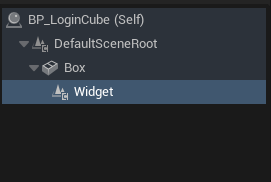
Key Widget Component Settings
To make the UI appear in the 3D world instead of a flat 2D screen layer, select your Widget Component and adjust these settings in the Details panel:
- Widget Class: Set this to your
WBP_Loginclass created in Step 1. - Space: Change this from Screen to World. This forces the UI to render as a 3D quad in the environment.
- Draw Size & Scale: If your UI looks microscopic, blurry, or completely missing, tweak the Draw Size (e.g., 512x512 or 1920x1080) and scale the component down manually in the viewport.
Framing it Flat on the Mesh Face
To get the UI sitting perfectly flat against the face of the primitive cube, position the component flush with the front face:
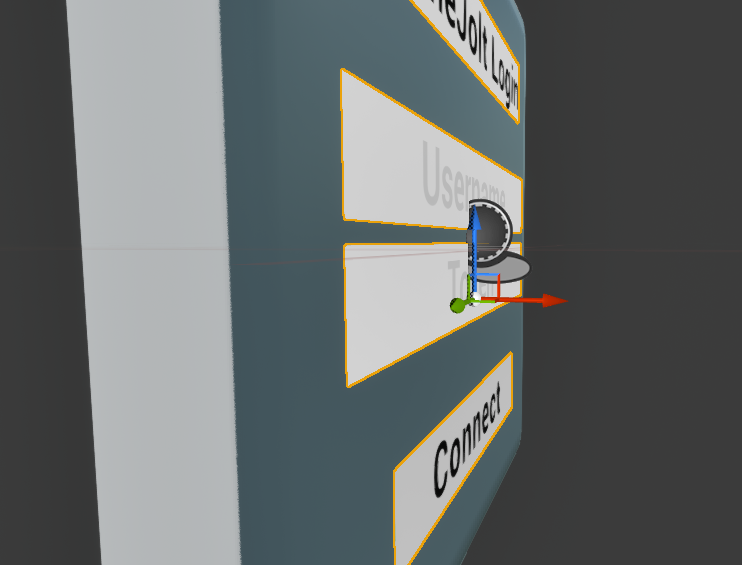
The Mesh is Just an Anchor: The Widget Component doesn't actually rely on the cube mesh to render. The mesh acts purely as a physical anchor point in the world. If you hide or remove the Static Mesh component entirely, you will be left with a perfectly functional, floating 3D menu.
🔗 Related Notes
- UI Component Library — Terminal diagnostic HUDs, widgets, and layout specifications.
- Brand Identity Specification FLUSHWHY RYAN FLUSH — Color palette, typography, and visual rules.
- Index for Unreal — Unreal Engine C++ and Blueprint architecture.
- Game Development Hub — Central game development index.